
Arc has always been API-first. You send MessagePack, InfluxDB Line Protocol, or REST, and you query with SQL over HTTP. That's exactly what you want for ingestion pipelines and automated jobs, but it's not always what you want when you're sitting down to actually look at your data, hand a teammate access, or check why last night's continuous query didn't fire.
So we built Arc Launchpad, a self-hosted web UI for Arc. It's available today, it's open source, and it deploys alongside Arc with a single docker compose up.
What Launchpad is (and isn't)
Launchpad is a browser-based control panel that connects to one or more Arc instances you already run. You point it at an Arc endpoint (URL + admin token), and it gives you a UI to both query and operate that instance.
To be precise about the boundary: Launchpad does not provision or host databases. It doesn't spin up servers, allocate storage, or run Arc for you. You bring your own Arc. But once it's connected, Launchpad is a real operations console: it drives Arc's admin API to manage tokens, retention, alerts, and continuous queries on your behalf. It stores only your connection records and your accounts/teams (in a local SQLite database) and never copies your data out of Arc. Every request goes straight to your instance through a built-in proxy.
Think of it as the missing front end for the Arc you're already running: for querying it and running it day to day.
Query and explore
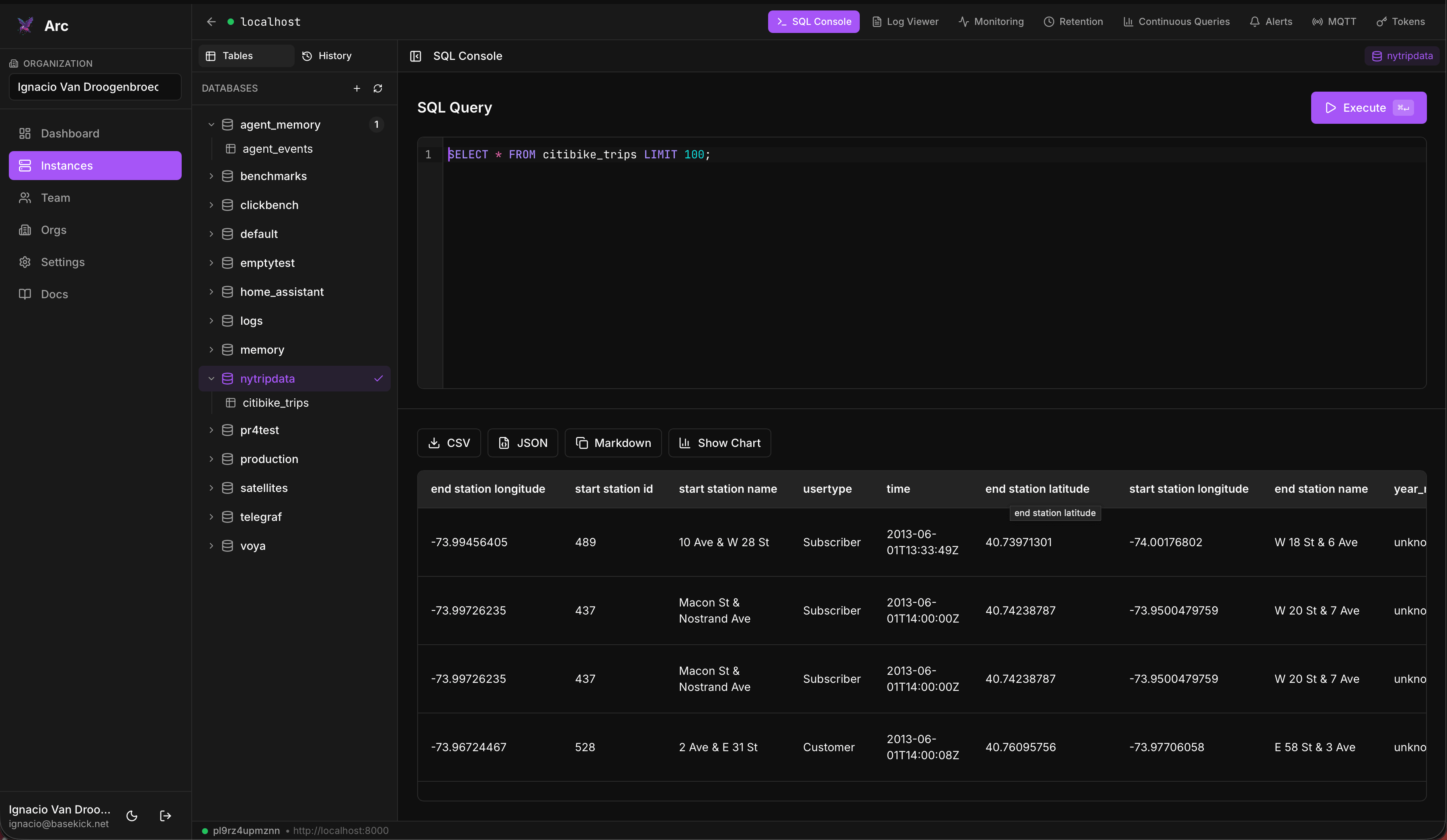
- SQL console with a schema explorer, query history, and multi-tab editing. Write a query, see your measurements and columns in the sidebar, keep several drafts open at once.
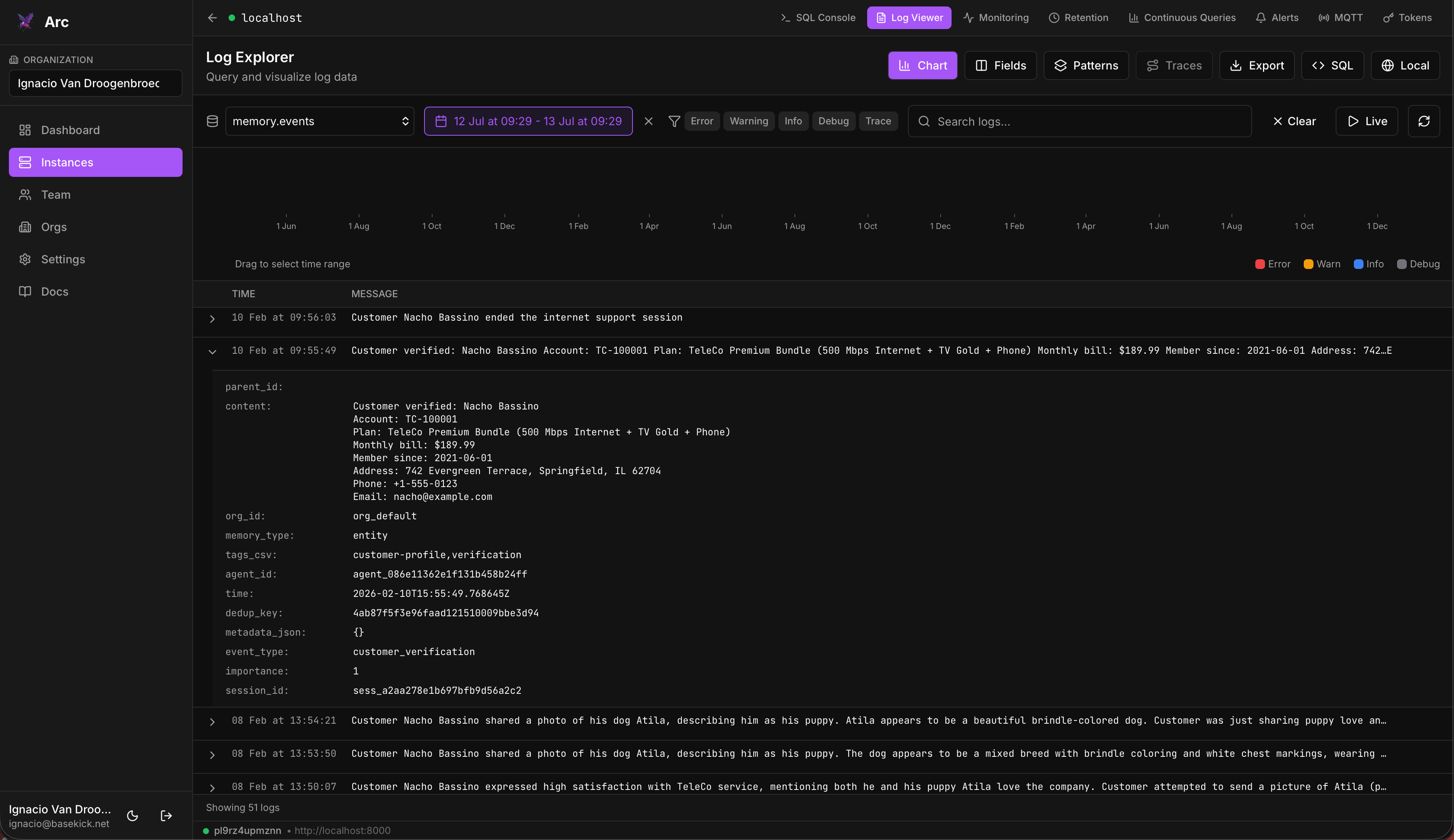
- Log viewer with pattern detection and trace extraction, for the logs you store in Arc. Point it at your log measurements and slice through them without writing the SQL by hand.
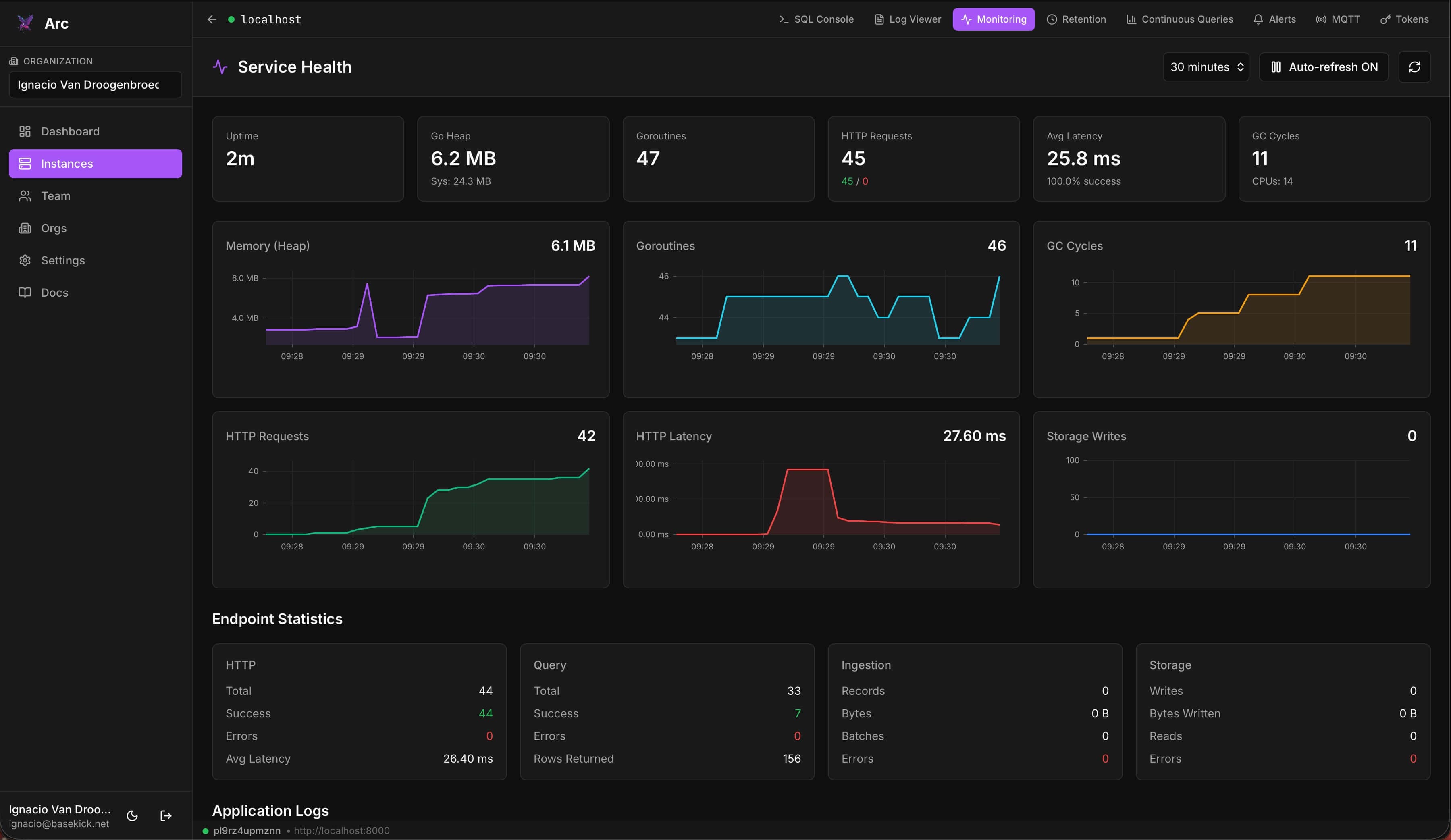
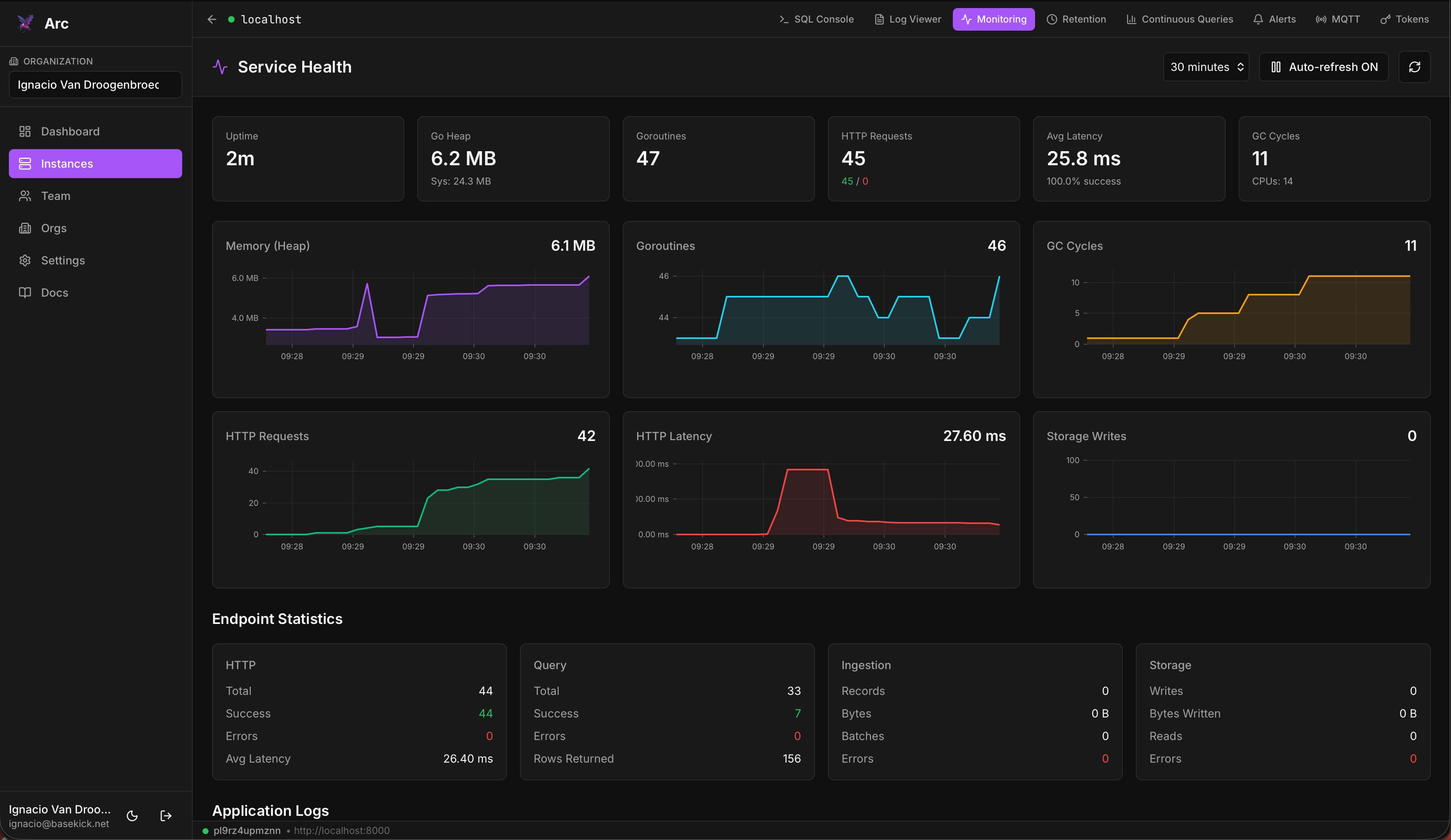
- Monitoring, Arc's own self-observability. See how the instance itself is doing: ingestion, queries, and internal metrics, right alongside your data.
Operate your instances
This is the part that turns a query tool into a control plane. Everything below is driven live against Arc's admin API, with no config files and no curl scripts:
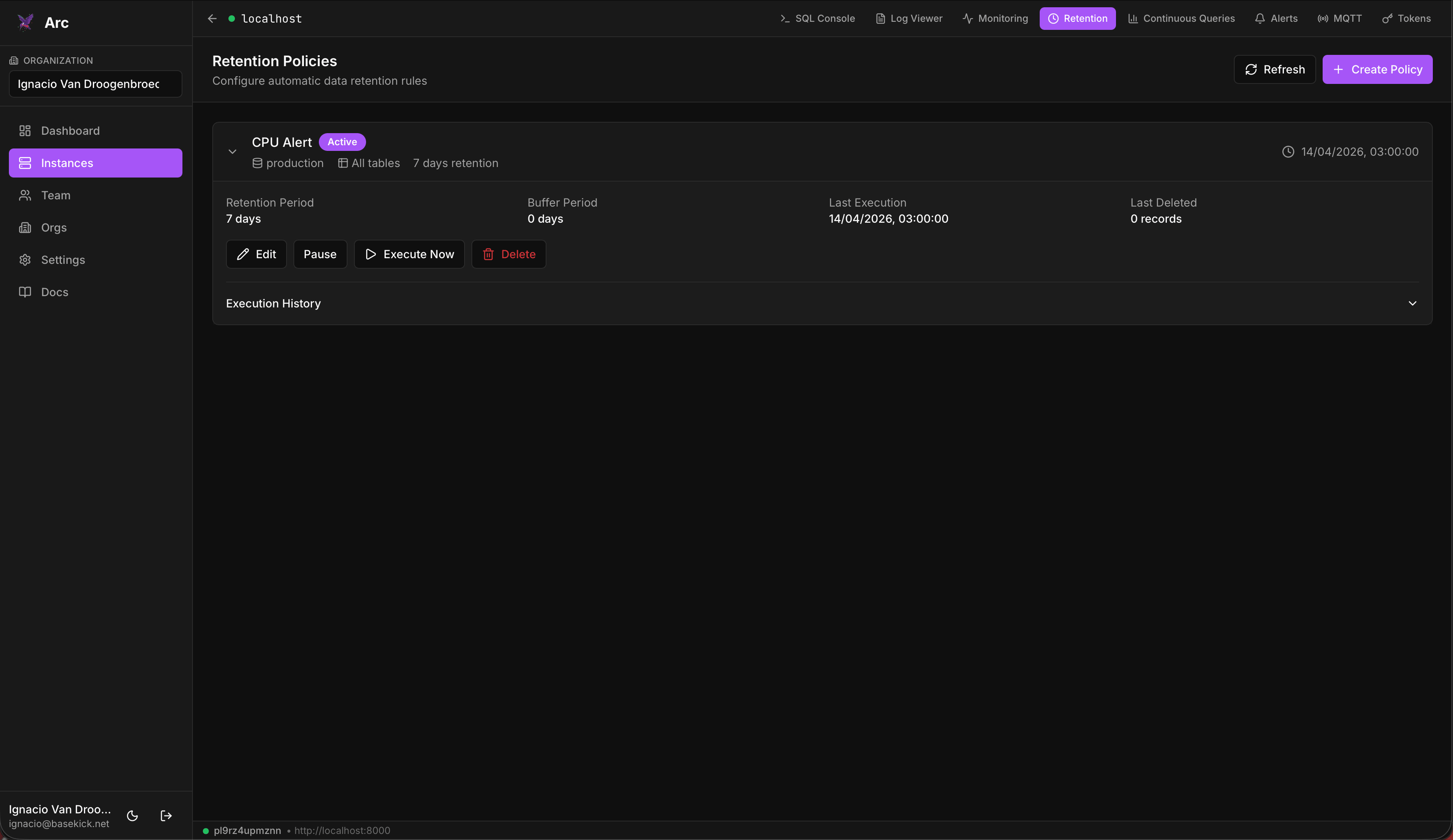
- Retention policies. Define automatic data-retention rules per database and measurement: a retention period in days, an optional buffer period, and whether the policy is enabled. Before anything is deleted you can run a dry-run that shows exactly which files and how many records a policy would remove, so you're never guessing. Execute on demand, or leave it enabled to run on its own.
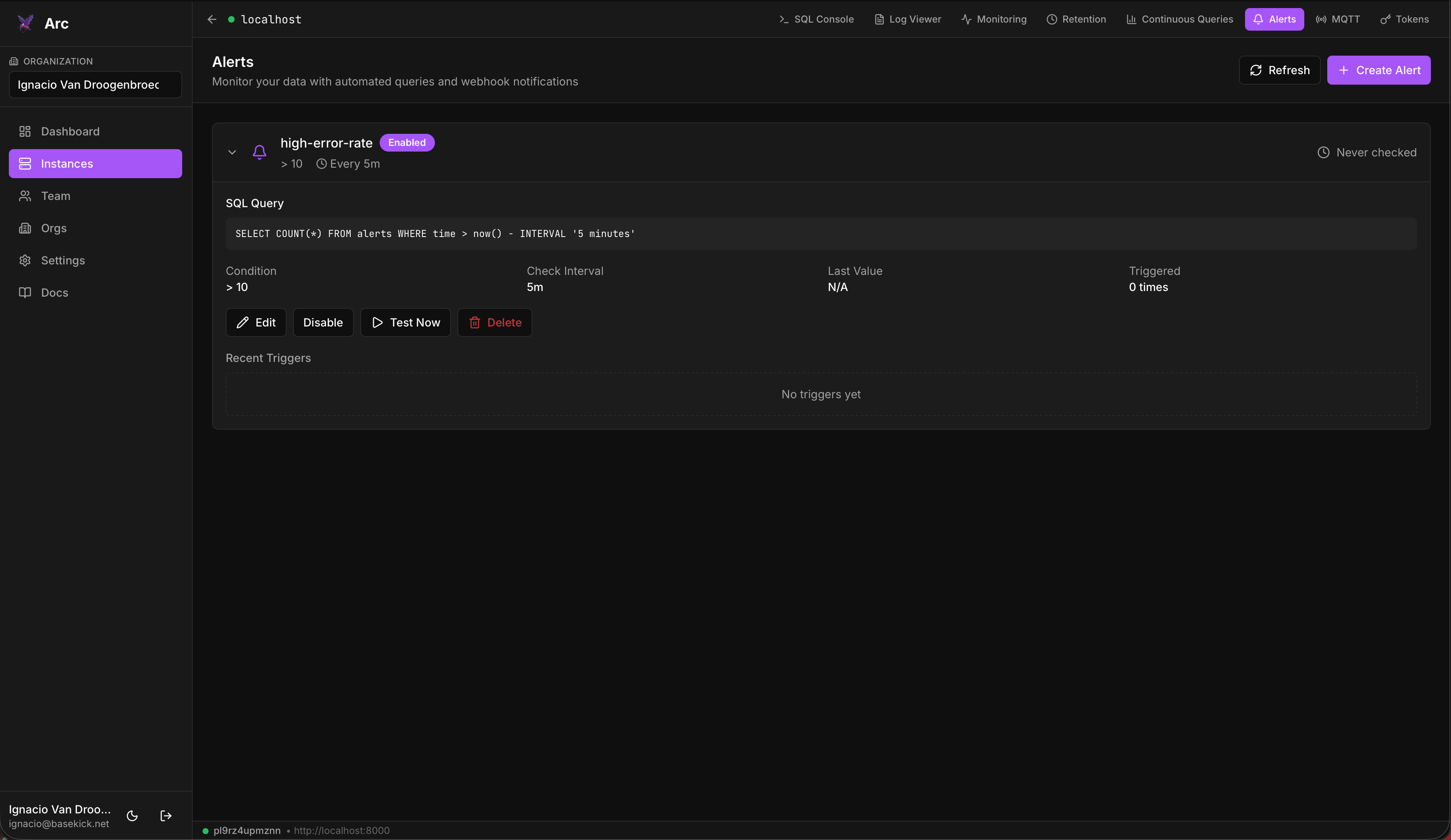
- Alerts. Create threshold alerts over your data: a condition on the last/aggregated value, a check interval (down to one minute), and a webhook URL to notify when it fires. See each alert's recent triggers, and enable, disable, edit, or delete them from the same screen.
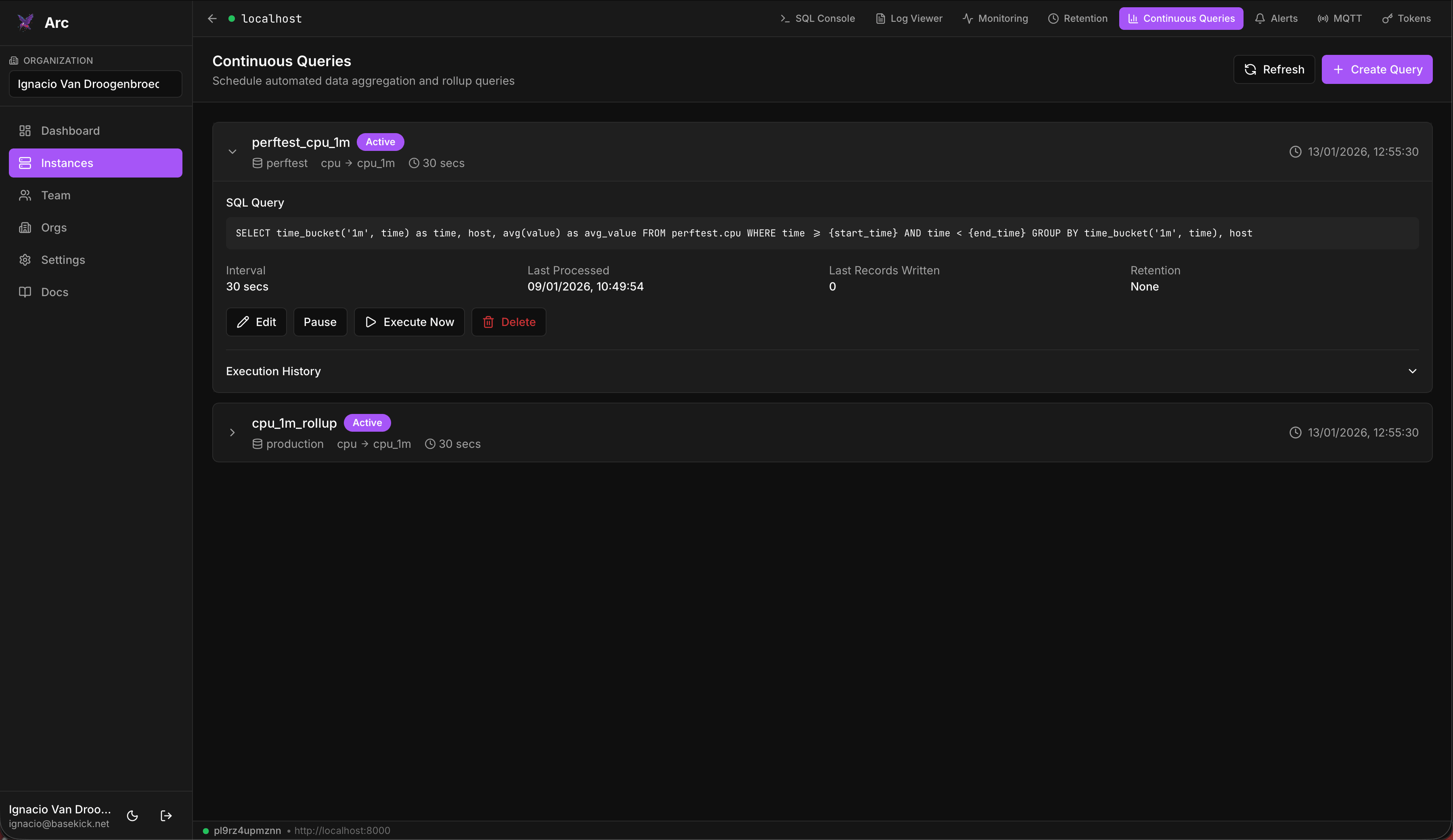
- Continuous queries. Set up rollups and downsampling: pick a source, a destination measurement, an aggregation window, and let Arc materialize it continuously. Optionally auto-delete the aggregated or source data after N days to keep storage in check. Run one on demand, or enable it to run on a schedule.
- Token management. Create API tokens scoped read or read/write, hand them a description, and revoke or disable them without deleting: full lifecycle for the credentials your ingestion pipelines and apps use. (Token and other admin actions require an admin-scoped connection, so read-only teammates can't mint credentials.)
Manage MQTT ingestion
If you're pulling sensor and IoT data over MQTT, Launchpad manages the whole ingestion path from the browser, with no broker config files and no restarts. Each subscription tells Arc which broker to connect to and where to land the data:
- Broker connection. Set the broker URL, client ID, and credentials, with the connection tuning you'd expect: keep-alive, connect timeout, and reconnect back-off (min/max). Auto-start a subscription so it comes up with the instance.
- Secure transport. Enable TLS, including full mTLS (CA certificate, client cert, and client key paths), for brokers that require mutual authentication.
- Topic-to-database routing. Subscribe to one or more topics and route them into Arc, with the ability to override the target database per topic so different streams land where they belong.
- QoS control. Set the MQTT quality-of-service level per subscription to match your delivery guarantees.
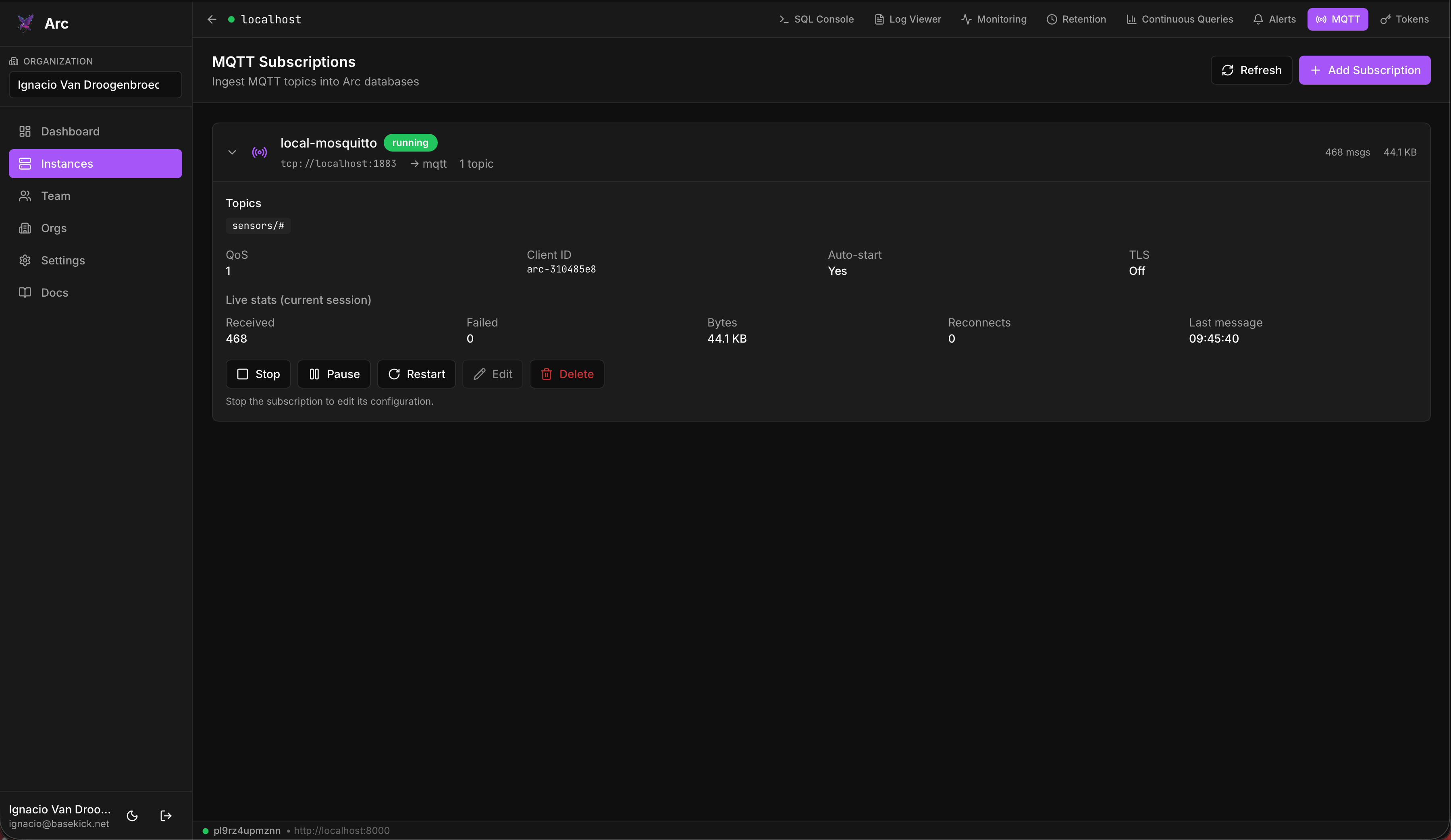
- Live stats and lifecycle. Watch a session's throughput as it flows (messages and bytes received, reconnect count, and the last message seen) and pause, resume, edit, or delete any subscription. (Stop a subscription to change its config, then start it again.)
MQTT management requires an admin-scoped connection, and the tab only appears when MQTT is enabled on that Arc instance.
Run it as a team
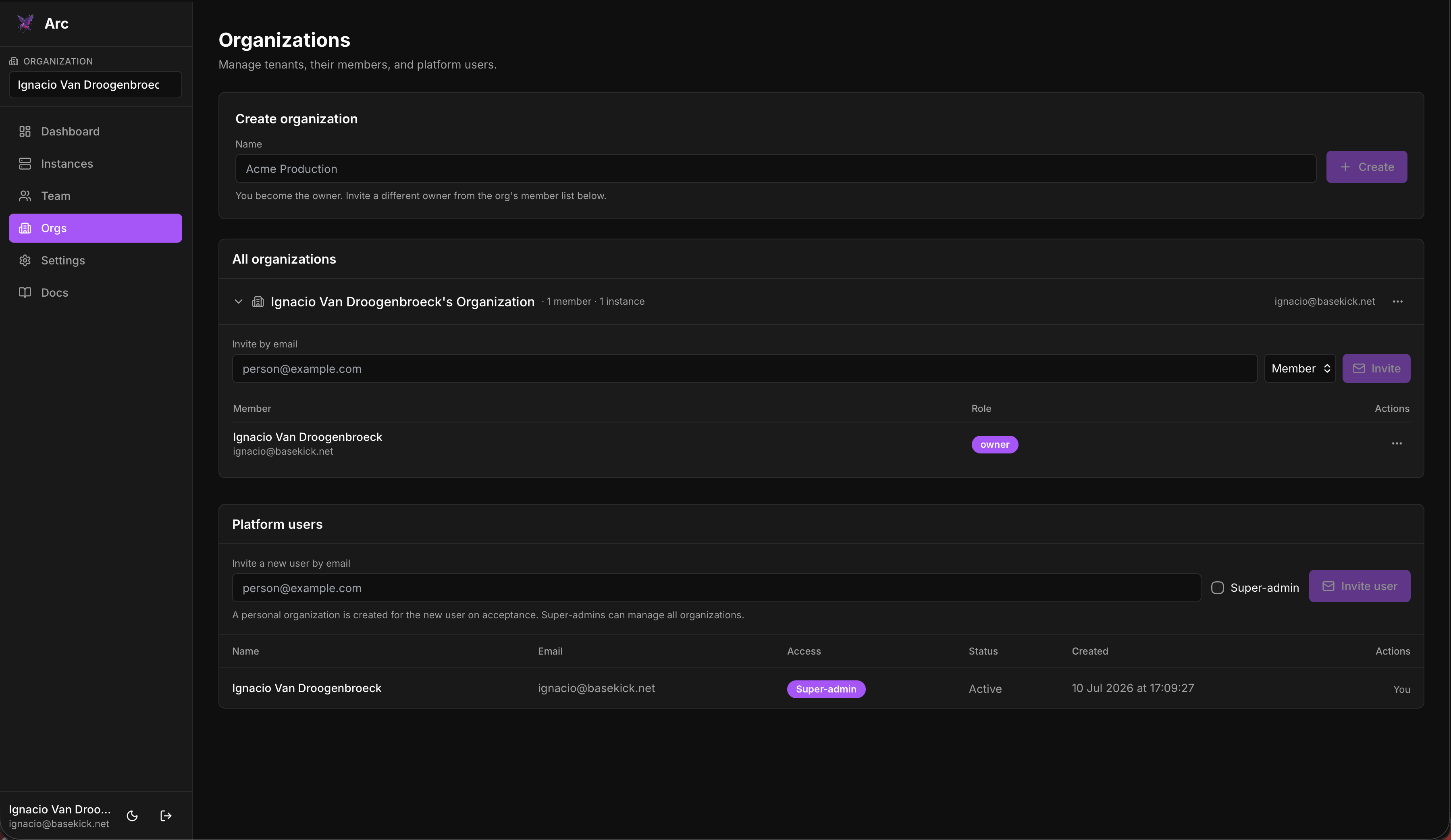
- Organizations & teams. Invite users, assign roles, and share access to instances across a team. Read-only members can query and explore; admins get the operational surface (tokens, retention, alerts).
- Local auth. Email/password with optional MFA (TOTP) and passkeys (WebAuthn). No external identity provider required, though Google OAuth is available if you want it.
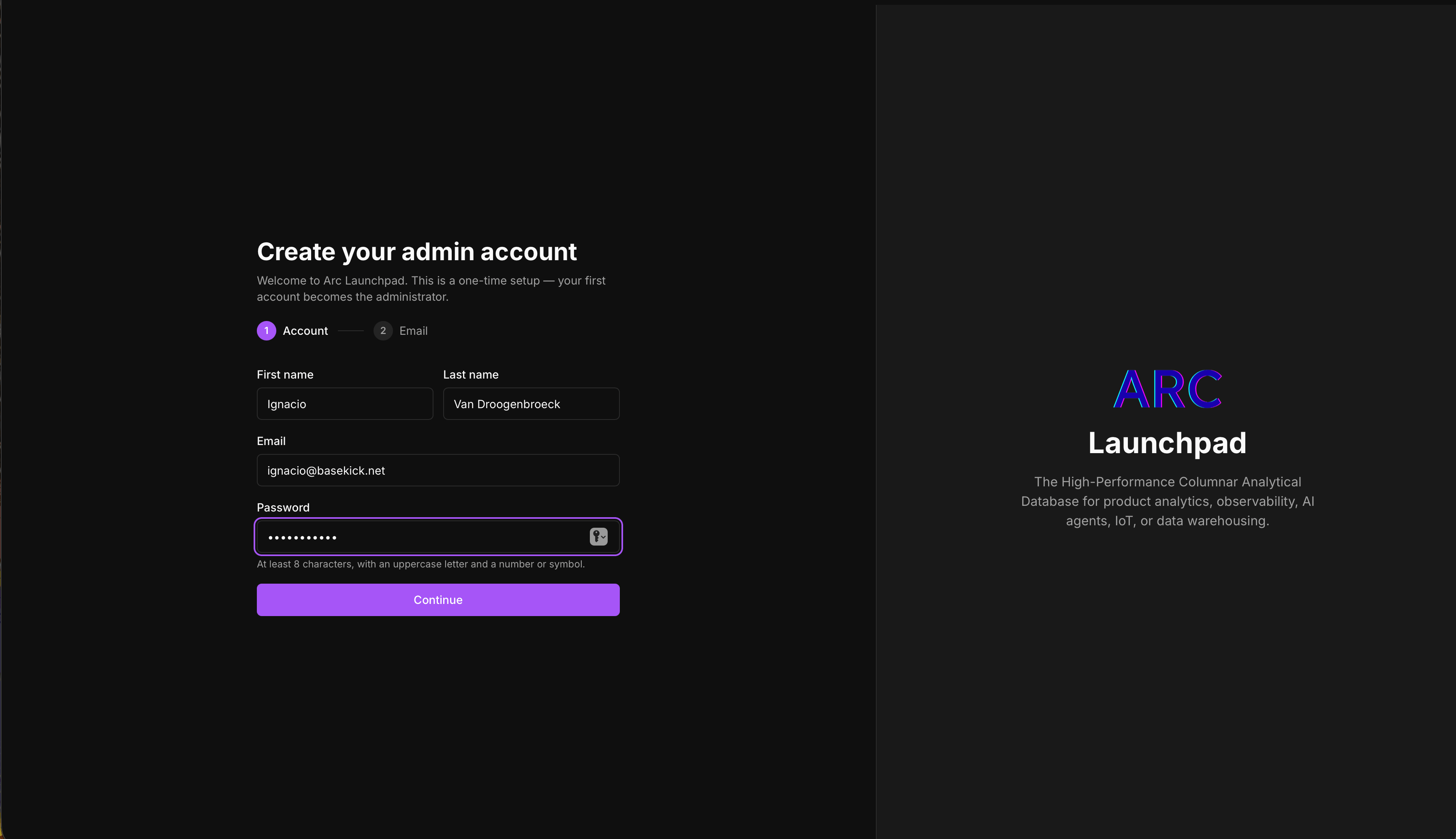
The first account you create becomes the admin. After that, self-service signup is closed by default; additional users join by invitation only. It's your deployment; you decide who's in it.
Deploy Launchpad alongside Arc
The fastest way to try Launchpad is to bring up both Arc and Launchpad together with Docker Compose. Create a docker-compose.yml:
services:
  arc:
    image: ghcr.io/basekick-labs/arc:latest
    container_name: arc
    restart: unless-stopped
    ports:
      - "8000:8000"
    environment:
      - STORAGE_BACKEND=local
    volumes:
      - arc-data:/app/data
    healthcheck:
      test: ["CMD", "curl", "-fsS", "http://127.0.0.1:8000/health"]
      interval: 30s
      timeout: 5s
      retries: 3
      start_period: 15s

  launchpad:
    image: ghcr.io/basekick-labs/launchpad:latest
    container_name: launchpad
    restart: unless-stopped
    depends_on:
      - arc
    ports:
      - "3000:3000"
    environment:
      # REQUIRED: signs session tokens. Generate with: openssl rand -hex 32
      - LAUNCHPAD_JWT_SECRET=${LAUNCHPAD_JWT_SECRET:?set LAUNCHPAD_JWT_SECRET, e.g. export LAUNCHPAD_JWT_SECRET=$(openssl rand -hex 32)}
      # Public URL of this deployment (used for email links + passkey origin).
      - LAUNCHPAD_BASE_URL=${LAUNCHPAD_BASE_URL:-http://localhost:3000}
      - LAUNCHPAD_DB_PATH=/app/data/launchpad.db
      # Arc is on the same Docker network here (a private address), so allow it.
      # This is an SSRF safeguard that's off by default; see the note below.
      - LAUNCHPAD_ALLOW_PRIVATE_ENDPOINTS=true
    volumes:
      - launchpad-data:/app/data
    healthcheck:
      test: ["CMD", "node", "-e", "require('http').get('http://127.0.0.1:3000/',r=>process.exit(r.statusCode<500?0:1)).on('error',()=>process.exit(1))"]
      interval: 30s
      timeout: 5s
      retries: 3
      start_period: 15s

volumes:
  arc-data:
  launchpad-data:
Bring it up:
LAUNCHPAD_JWT_SECRET=$(openssl rand -hex 32) docker compose up -dTwo things to note about connecting Launchpad to Arc:
- Private endpoints. By default Launchpad rejects Arc endpoints that resolve to a private, loopback, or link-local address. That's an SSRF safeguard, since its proxy forwards requests to whatever endpoint you register. Because Arc here lives on the same Docker network (a private address), we set
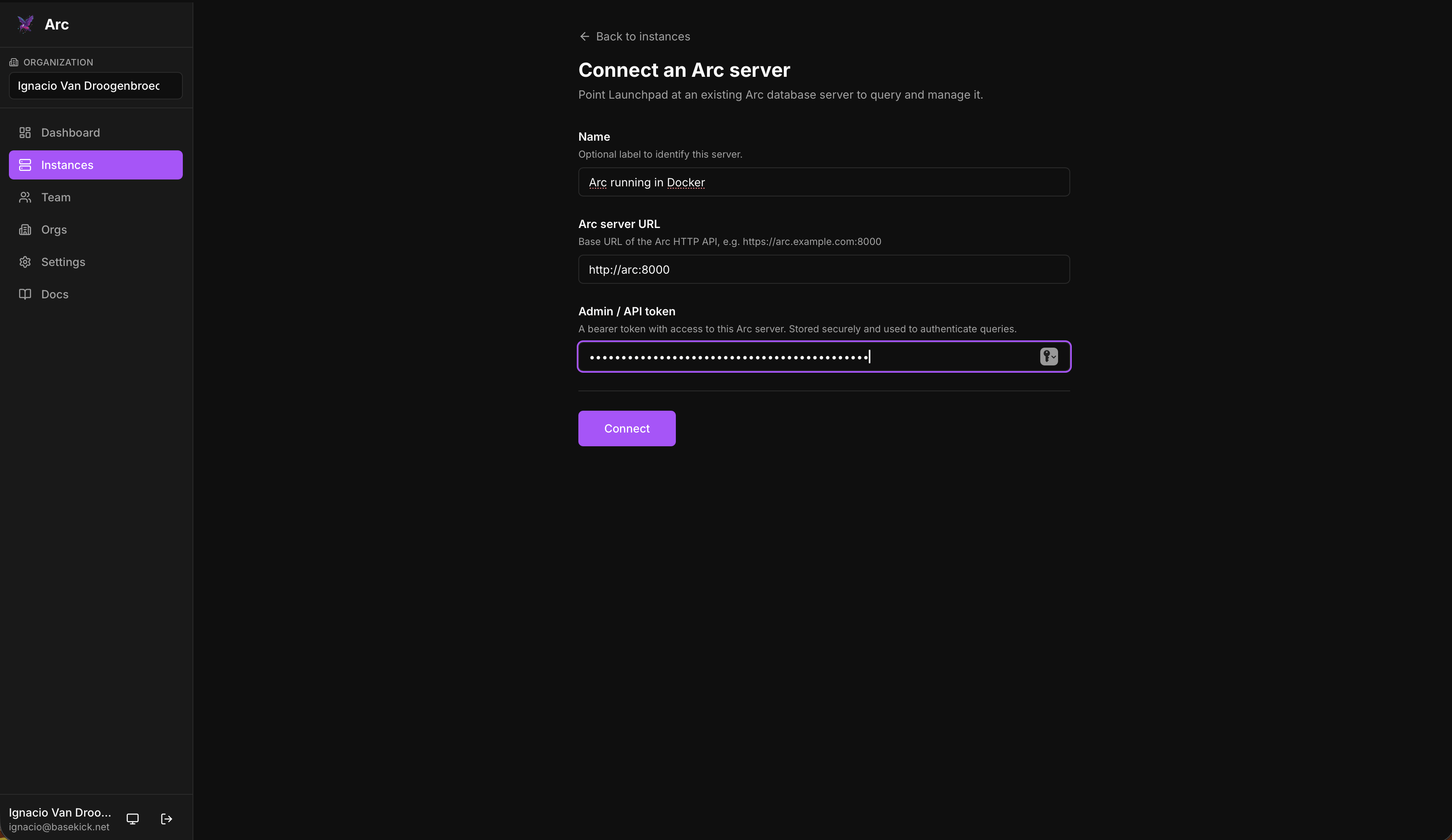
LAUNCHPAD_ALLOW_PRIVATE_ENDPOINTS=true. Even then, the proxy resolves-and-pins the target IP per request, so it stays safe against DNS rebinding. - The endpoint URL. On the shared Docker network, Arc is reachable at
http://arc:8000. (If you were pointing Launchpad at an Arc running on the host instead of in Compose, you'd usehttp://host.docker.internal:8000; inside the container,localhostis the container itself.)
Grab Arc's admin token
On first run, Arc generates an admin token automatically. Pull it from the logs:
docker logs arc | grep -i "admin token"You'll paste this into Launchpad when you add the connection.
Connect the two
- Open http://localhost:3000 and create your first account. It becomes the admin.
- Add a connection pointing at
http://arc:8000with the admin token from the step above. - Launchpad verifies the connection, and you're in: query, browse schemas, manage tokens and retention, set up alerts.
Other ways to run it
Compose is the quick path, but Launchpad ships a few options:
-
Standalone Docker, to point it at an Arc you already run elsewhere:
docker run -p 3000:3000 \
  -e LAUNCHPAD_JWT_SECRET=$(openssl rand -hex 32) \
  -e LAUNCHPAD_BASE_URL=http://localhost:3000 \
  -v launchpad-data:/app/data \
  ghcr.io/basekick-labs/launchpad:latest
(Set
LAUNCHPAD_BASE_URLto the public URL you actually serve on; it defaults to the dev port otherwise. If that Arc sits on a private or LAN address, add-e LAUNCHPAD_ALLOW_PRIVATE_ENDPOINTS=truetoo.) -
Helm, for Kubernetes:
helm install launchpad oci://ghcr.io/basekick-labs/charts/launchpad \ --set jwtSecret=$(openssl rand -hex 32) \ --set baseUrl=https://launchpad.example.com -
From source with Node.js 20+. See the README for the full configuration reference.
Put it behind TLS
For anything beyond local testing, run Launchpad behind a reverse proxy that terminates TLS, and set LAUNCHPAD_BASE_URL to your public HTTPS URL so email links and passkey origins line up. If you're already using Traefik for Arc, the same pattern extends cleanly to Launchpad; our Traefik + Let's Encrypt guide walks through it.
Available today
Arc Launchpad is out now and open source. Grab the Docker image and give your Arc a face.
A note on docs: full documentation is still in progress. In the meantime, we've put real effort into making Launchpad intuitive enough to find your way around without a manual: sign in, connect an Arc instance, and the console walks you through the rest. The README covers deployment and configuration, and the docs site will fill in the rest as it grows.
As always, if you run into something or have a feature request, open an issue or find us in the Arc community. We'd love to hear what you build with it.