
Kubernetes makes deploying applications easy. Knowing what's actually happening inside your cluster? That's the hard part.
You've got nodes spinning up and down, pods getting scheduled and rescheduled, containers crashing and restarting. Each component generates metrics—CPU usage, memory consumption, network traffic, disk I/O. Multiply that by dozens of pods across multiple namespaces, and you're looking at thousands of time-series data points every few seconds.
This is exactly the kind of high-cardinality, high-throughput workload that traditional monitoring tools struggle with. And it's exactly what Arc was built for.
In this guide, we'll build a complete Kubernetes monitoring stack: Telegraf collects the metrics, Arc stores them, and Grafana visualizes everything with real-time dashboards and alerts.
The Architecture
Here's what we're building:
┌─────────────────────────────────────────────────────────┐
│                   Kubernetes Cluster                    │
│                                                         │
│  ┌──────────┐  ┌──────────┐  ┌──────────┐               │
│  │  Node 1  │  │  Node 2  │  │  Node 3  │               │
│  │┌────────┐│  │┌────────┐│  │┌────────┐│               │
│  ││Telegraf││  ││Telegraf││  ││Telegraf││  (DaemonSet)  │
│  │└────────┘│  │└────────┘│  │└────────┘│               │
│  └────┬─────┘  └────┬─────┘  └────┬─────┘               │
│       │             │             │                     │
│       └─────────────┼─────────────┘                     │
│                     ▼                                   │
│              ┌─────────────┐                            │
│              │     Arc     │  (Deployment)              │
│              │  Port 8000  │                            │
│              └──────┬──────┘                            │
│                     │                                   │
│                     ▼                                   │
│              ┌─────────────┐                            │
│              │   Grafana   │  (Deployment)              │
│              │  Port 3000  │                            │
│              └─────────────┘                            │
└─────────────────────────────────────────────────────────┘
Telegraf runs as a DaemonSet—one instance per node. This ensures every node in your cluster gets monitored, even as nodes scale up and down. Telegraf's Kubernetes input plugin talks directly to the Kubelet API to collect node, pod, and container metrics.
Arc runs as a Deployment, receiving metrics from all Telegraf instances and storing them in Parquet files. Arc handles the high-cardinality challenge well—pod names, container IDs, and labels create millions of unique series, but Arc's columnar storage keeps queries fast.
Grafana connects to Arc for visualization and alerting. We'll set up dashboards showing cluster health, resource usage by namespace, and individual pod performance.
Prerequisites
Before we start, you'll need:
- A running Kubernetes cluster (minikube, kind, k3s, or any managed K8s)
kubectlconfigured to access your cluster- Basic familiarity with YAML manifests
If you're using minikube, start it with enough resources:
minikube start --cpus=4 --memory=8192Step 1: Deploy Arc
First, let's get Arc running in the cluster. We'll create a namespace to keep everything organized.
Create a file called arc-deployment.yaml:
apiVersion: v1
kind: Namespace
metadata:
  name: monitoring
---
apiVersion: v1
kind: PersistentVolumeClaim
metadata:
  name: arc-data
  namespace: monitoring
spec:
  accessModes:
    - ReadWriteOnce
  resources:
    requests:
      storage: 10Gi
---
apiVersion: apps/v1
kind: Deployment
metadata:
  name: arc
  namespace: monitoring
spec:
  replicas: 1
  selector:
    matchLabels:
      app: arc
  template:
    metadata:
      labels:
        app: arc
    spec:
      containers:
        - name: arc
          image: ghcr.io/basekick-labs/arc:26.01.2
          ports:
            - containerPort: 8000
          env:
            - name: STORAGE_BACKEND
              value: "local"
          volumeMounts:
            - name: data
              mountPath: /app/data
          resources:
            requests:
              memory: "512Mi"
              cpu: "500m"
            limits:
              memory: "2Gi"
              cpu: "2000m"
      volumes:
        - name: data
          persistentVolumeClaim:
            claimName: arc-data
---
apiVersion: v1
kind: Service
metadata:
  name: arc
  namespace: monitoring
spec:
  selector:
    app: arc
  ports:
    - port: 8000
      targetPort: 8000
A few things to note:
- PersistentVolumeClaim: Arc stores data in Parquet files. The PVC ensures your metrics survive pod restarts.
- Resource limits: Arc is memory-efficient, but give it headroom for query caching.
- Service: This creates a
arc.monitoring.svc.cluster.localDNS entry that Telegraf will use.
Apply it:
kubectl apply -f arc-deployment.yamlWait for Arc to start:
kubectl -n monitoring get pods -wOnce it's running, grab the admin token from the logs:
kubectl -n monitoring logs deployment/arc | grep "Initial admin"You'll see something like:
Initial admin API token: arc_xxxxxxxxxxxxxxxxxxxxxxxxxxxxx
Save this token—you'll need it for Telegraf and Grafana configuration.
Step 2: Deploy Telegraf
Now for the metrics collection. Telegraf needs three things:
- RBAC permissions to read Kubernetes metrics
- A ConfigMap with the Telegraf configuration
- A DaemonSet to run Telegraf on every node
RBAC Setup
Telegraf needs to talk to the Kubernetes API to discover pods and read metrics from the Kubelet. Create telegraf-rbac.yaml:
apiVersion: v1
kind: ServiceAccount
metadata:
  name: telegraf
  namespace: monitoring
---
apiVersion: rbac.authorization.k8s.io/v1
kind: ClusterRole
metadata:
  name: telegraf
rules:
  - apiGroups: [""]
    resources:
      - nodes
      - nodes/proxy
      - nodes/stats
      - pods
      - services
      - endpoints
      - persistentvolumeclaims
      - persistentvolumes
    verbs: ["get", "list", "watch"]
  - apiGroups: ["apps"]
    resources:
      - deployments
      - daemonsets
      - replicasets
      - statefulsets
    verbs: ["get", "list", "watch"]
  - apiGroups: ["batch"]
    resources:
      - jobs
      - cronjobs
    verbs: ["get", "list", "watch"]
  - nonResourceURLs:
      - /metrics
    verbs: ["get"]
---
apiVersion: rbac.authorization.k8s.io/v1
kind: ClusterRoleBinding
metadata:
  name: telegraf
roleRef:
  apiGroup: rbac.authorization.k8s.io
  kind: ClusterRole
  name: telegraf
subjects:
  - kind: ServiceAccount
    name: telegraf
    namespace: monitoring
What's RBAC? Role-Based Access Control defines what Telegraf can do in your cluster. The ClusterRole lists the resources Telegraf can read (nodes, pods, etc.), and the ClusterRoleBinding connects that role to Telegraf's ServiceAccount.
Telegraf Configuration
Create telegraf-config.yaml:
apiVersion: v1
kind: ConfigMap
metadata:
  name: telegraf-config
  namespace: monitoring
data:
  telegraf.conf: |
    [agent]
      interval = "10s"
      round_interval = true
      metric_batch_size = 1000
      metric_buffer_limit = 10000
      flush_interval = "10s"
      flush_jitter = "0s"
      precision = "0s"
      hostname = "$HOSTNAME"
      omit_hostname = false

    # Arc output plugin
    [[outputs.arc]]
      url = "http://arc.monitoring.svc.cluster.local:8000/api/v1/write/msgpack"
      api_key = "$ARC_TOKEN"
      database = "kubernetes"
      content_encoding = "gzip"

    # Kubernetes metrics from Kubelet
    [[inputs.kubernetes]]
      url = "https://$HOSTIP:10250"
      bearer_token = "/var/run/secrets/kubernetes.io/serviceaccount/token"
      insecure_skip_verify = true

    # Node-level system metrics
    [[inputs.cpu]]
      percpu = false
      totalcpu = true
      collect_cpu_time = false

    [[inputs.mem]]

    [[inputs.disk]]
      ignore_fs = ["tmpfs", "devtmpfs", "devfs", "iso9660", "overlay", "aufs", "squashfs"]

    [[inputs.diskio]]

    [[inputs.net]]
      ignore_protocol_stats = true

    [[inputs.system]]
This configuration:
- Collects Kubernetes pod and container metrics via the Kubelet API
- Collects host-level CPU, memory, disk, and network metrics
- Sends everything to Arc with gzip compression
- Uses
$HOSTNAMEand$HOSTIPenvironment variables (we'll set these in the DaemonSet)
DaemonSet
Finally, create telegraf-daemonset.yaml:
apiVersion: v1
kind: Secret
metadata:
  name: telegraf-secrets
  namespace: monitoring
type: Opaque
stringData:
  arc-token: "arc_xxxxxxxxxxxxxxxxxxxxxxxxxxxxx"  # Replace with your Arc token
---
apiVersion: apps/v1
kind: DaemonSet
metadata:
  name: telegraf
  namespace: monitoring
spec:
  selector:
    matchLabels:
      app: telegraf
  template:
    metadata:
      labels:
        app: telegraf
    spec:
      serviceAccountName: telegraf
      containers:
        - name: telegraf
          image: telegraf:1.33
          env:
            - name: HOSTNAME
              valueFrom:
                fieldRef:
                  fieldPath: spec.nodeName
            - name: HOSTIP
              valueFrom:
                fieldRef:
                  fieldPath: status.hostIP
            - name: ARC_TOKEN
              valueFrom:
                secretKeyRef:
                  name: telegraf-secrets
                  key: arc-token
            - name: HOST_PROC
              value: /hostfs/proc
            - name: HOST_SYS
              value: /hostfs/sys
            - name: HOST_ETC
              value: /hostfs/etc
            - name: HOST_MOUNT_PREFIX
              value: /hostfs
          volumeMounts:
            - name: config
              mountPath: /etc/telegraf
            - name: hostfs-proc
              mountPath: /hostfs/proc
              readOnly: true
            - name: hostfs-sys
              mountPath: /hostfs/sys
              readOnly: true
          resources:
            requests:
              memory: "128Mi"
              cpu: "100m"
            limits:
              memory: "256Mi"
              cpu: "500m"
      volumes:
        - name: config
          configMap:
            name: telegraf-config
        - name: hostfs-proc
          hostPath:
            path: /proc
        - name: hostfs-sys
          hostPath:
            path: /sys
What's a DaemonSet? Unlike a Deployment (which runs a specific number of pods), a DaemonSet ensures exactly one pod runs on every node. When you add a node, Kubernetes automatically schedules a Telegraf pod on it. When you remove a node, the pod goes away. Perfect for monitoring agents.
The volume mounts (/hostfs/proc, /hostfs/sys) give Telegraf access to the host's metrics, not just the container's.
Important: Replace arc_xxxxxxxxxxxxxxxxxxxxxxxxxxxxx with your actual Arc token from Step 1.
Apply everything:
kubectl apply -f telegraf-rbac.yaml
kubectl apply -f telegraf-config.yaml
kubectl apply -f telegraf-daemonset.yaml
Check that Telegraf pods are running on each node:
kubectl -n monitoring get pods -l app=telegraf -o wideYou should see one Telegraf pod per node.
Step 3: Verify Metrics in Arc
Let's confirm data is flowing. First, port-forward to Arc:
kubectl -n monitoring port-forward svc/arc 8000:8000In another terminal, query Arc:
export ARC_TOKEN="arc_xxxxxxxxxxxxxxxxxxxxxxxxxxxxx"

curl -X POST http://localhost:8000/api/v1/query \
  -H "Authorization: Bearer $ARC_TOKEN" \
  -H "Content-Type: application/json" \
  -d '{"sql": "SHOW TABLES FROM kubernetes"}'
You should see tables like:
{
  "columns": ["name"],
  "data": [
    ["cpu"],
    ["disk"],
    ["diskio"],
    ["kubernetes_node"],
    ["kubernetes_pod_container"],
    ["kubernetes_pod_network"],
    ["kubernetes_pod_volume"],
    ["kubernetes_system_container"],
    ["mem"],
    ["net"],
    ["system"]
  ]
}
Let's look at pod container metrics:
curl -X POST http://localhost:8000/api/v1/query \
  -H "Authorization: Bearer $ARC_TOKEN" \
  -H "Content-Type: application/json" \
  -d '{
    "sql": "SELECT time, pod_name, namespace, container_name, cpu_usage_nanocores, memory_usage_bytes FROM kubernetes.kubernetes_pod_container ORDER BY time DESC LIMIT 10"
  }'
You'll see metrics for each container running in your cluster.
Step 4: Deploy Grafana
Now let's visualize everything. Create grafana-deployment.yaml:
apiVersion: v1
kind: PersistentVolumeClaim
metadata:
  name: grafana-data
  namespace: monitoring
spec:
  accessModes:
    - ReadWriteOnce
  resources:
    requests:
      storage: 5Gi
---
apiVersion: apps/v1
kind: Deployment
metadata:
  name: grafana
  namespace: monitoring
spec:
  replicas: 1
  selector:
    matchLabels:
      app: grafana
  template:
    metadata:
      labels:
        app: grafana
    spec:
      securityContext:
        fsGroup: 472
      containers:
        - name: grafana
          image: grafana/grafana:latest
          ports:
            - containerPort: 3000
          env:
            - name: GF_SECURITY_ADMIN_USER
              value: "admin"
            - name: GF_SECURITY_ADMIN_PASSWORD
              value: "admin"
            - name: GF_PLUGINS_ALLOW_LOADING_UNSIGNED_PLUGINS
              value: "basekick-arc-datasource"
          volumeMounts:
            - name: grafana-storage
              mountPath: /var/lib/grafana
          resources:
            requests:
              memory: "256Mi"
              cpu: "250m"
      volumes:
        - name: grafana-storage
          persistentVolumeClaim:
            claimName: grafana-data
---
apiVersion: v1
kind: Service
metadata:
  name: grafana
  namespace: monitoring
spec:
  type: NodePort
  selector:
    app: grafana
  ports:
    - port: 3000
      targetPort: 3000
      nodePort: 30300
The PVC ensures Grafana's data persists across pod restarts, including any plugins you install. The fsGroup: 472 ensures the Grafana user (UID 472) can write to the mounted volume.
Apply it:
kubectl apply -f grafana-deployment.yamlWait for Grafana to start:
kubectl -n monitoring get pods -l app=grafana -wInstall the Arc Datasource Plugin
The Arc datasource plugin needs to be installed manually. First, exec into the Grafana pod:
kubectl -n monitoring exec -it deployment/grafana -- /bin/shInside the pod, download and install the plugin:
# Updated Feb 2026: now pointing to v1.1.0
wget https://github.com/basekick-labs/grafana-arc-datasource/releases/download/v1.1.0/basekick-arc-datasource-1.1.0.zip
unzip basekick-arc-datasource-1.1.0.zip -d /var/lib/grafana/plugins/
exit
Restart Grafana to load the plugin:
kubectl -n monitoring rollout restart deployment/grafanaSince the plugin is stored on the PVC, it will persist across future restarts.
Configure the Datasource
Access Grafana at http://<node-ip>:30300 (or use minikube service grafana -n monitoring if using minikube).
Login with admin / admin, then:
- Go to Connections → Data sources
- Click Add data source
- Search for Arc and select it
- Configure:
- URL:
http://arc.monitoring.svc.cluster.local:8000 - API Key: Your Arc token
- Database:
kubernetes
- URL:
- Click Save & Test
You should see "Data source is working".
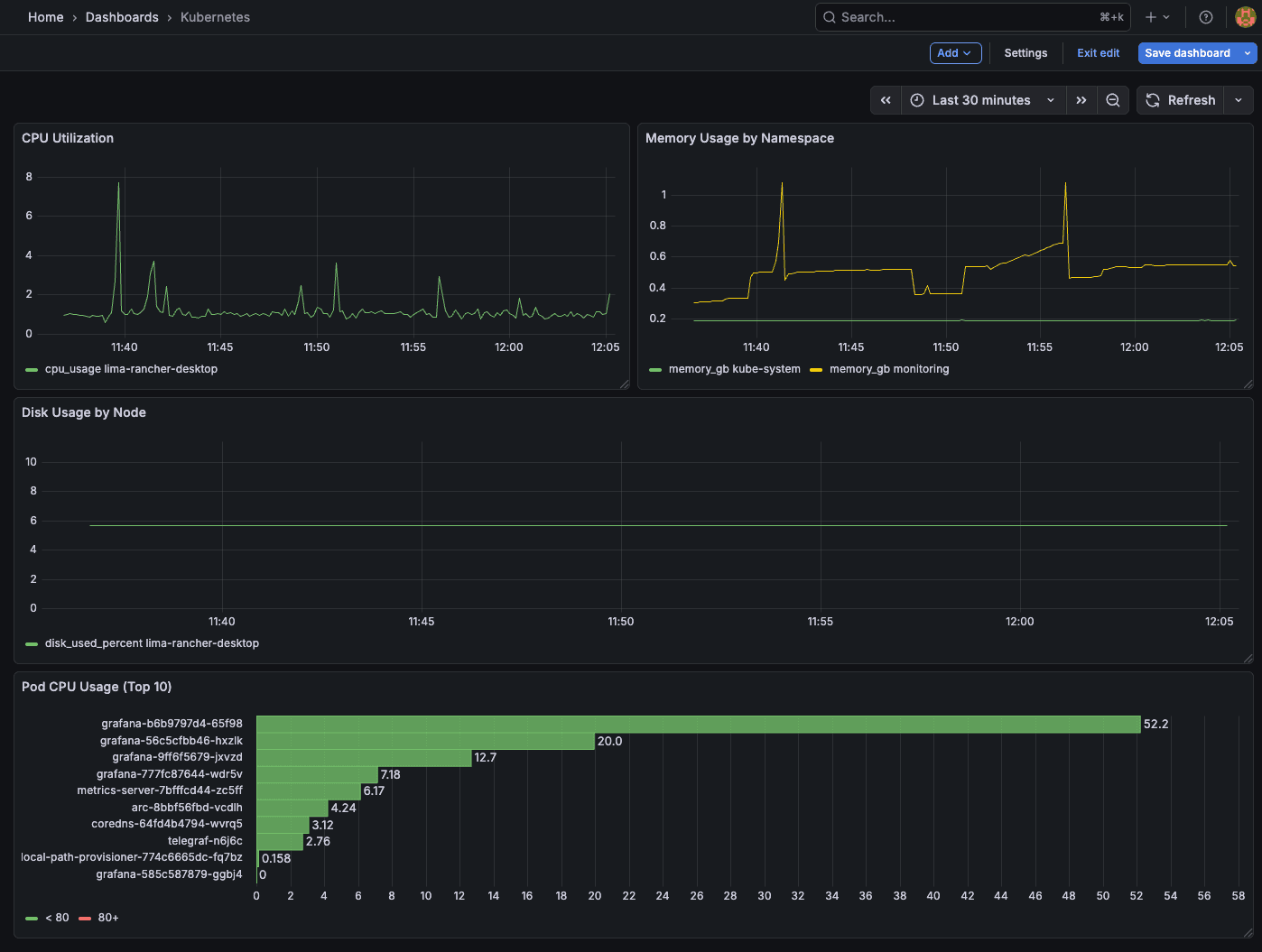
Step 5: Create Dashboards
Now the fun part. Let's build some useful visualizations.
Cluster CPU Usage
Create a new dashboard, add a panel, and use this query:
SELECT
  time_bucket(INTERVAL '$__interval', time) as time,
  host,
  AVG(usage_idle) * -1 + 100 AS cpu_usage
FROM kubernetes.cpu
WHERE $__timeFilter(time)
GROUP BY time_bucket(INTERVAL '$__interval', time), host
ORDER BY time ASC
This shows CPU usage per node over time.
Memory Usage by Namespace
SELECT
  time_bucket(INTERVAL '$__interval', time) as time,
  namespace,
  SUM(memory_working_set_bytes) / 1024 / 1024 / 1024 AS memory_gb
FROM kubernetes.kubernetes_pod_container
WHERE $__timeFilter(time)
GROUP BY time_bucket(INTERVAL '$__interval', time), namespace
ORDER BY time ASC
Pod CPU Usage (Top 10)
SELECT
  pod_name,
  namespace,
  AVG(cpu_usage_nanocores) / 1000000 AS cpu_millicores
FROM kubernetes.kubernetes_pod_container
WHERE $__timeFilter(time)
GROUP BY pod_name, namespace
ORDER BY cpu_millicores DESC
LIMIT 10
Use a Bar Gauge visualization for this one.
Disk Usage by Node
SELECT
  time_bucket(INTERVAL '$__interval', time) as time,
  host,
  AVG(used_percent) AS disk_used_percent
FROM kubernetes.disk
WHERE $__timeFilter(time)
GROUP BY time_bucket(INTERVAL '$__interval', time), host
ORDER BY time ASC
This shows disk utilization trends across your cluster nodes.
Step 6: Set Up Alerts
Grafana alerting lets you get notified when things go wrong.
High CPU Alert
Create an alert rule with this query:
SELECT
  time,
  host,
  100 - usage_idle AS cpu_usage
FROM kubernetes.cpu
WHERE time >= NOW() - INTERVAL '5 minutes'
ORDER BY time ASC
Set the condition: WHEN avg() OF query(A, 5m, now) IS ABOVE 80
Memory Pressure Alert
SELECT
  time,
  host,
  used_percent
FROM kubernetes.mem
WHERE time >= NOW() - INTERVAL '5 minutes'
ORDER BY time ASC
Condition: WHEN avg() IS ABOVE 90
High Disk Usage Alert
SELECT
  time,
  host,
  used_percent
FROM kubernetes.disk
WHERE time >= NOW() - INTERVAL '5 minutes'
ORDER BY time ASC
Condition: WHEN avg() IS ABOVE 85 (alert when disk usage exceeds 85%)
Configure notification channels (email, Slack, PagerDuty) in Grafana's alerting settings.
Why This Stack?
You might wonder—why not just use Prometheus? Prometheus is great, but it has limitations at scale:
- Cardinality limits: Prometheus struggles with high-cardinality labels. Kubernetes generates a lot of unique label combinations.
- Storage: Prometheus's local storage isn't designed for long-term retention. You need Thanos or Cortex for that.
- Query language: PromQL has a learning curve. Arc uses standard SQL.
The Telegraf + Arc + Grafana stack gives you:
- Unlimited cardinality: Arc handles millions of unique series efficiently
- Standard SQL: Query your metrics with familiar SQL syntax
- Portable storage: Parquet files you can query with DuckDB, pandas, or Spark
- Simple setup: No Prometheus operator, no Thanos sidecars, no complex federation
Going Further: kube_inventory and More
The setup in this guide uses Telegraf's kubernetes input plugin, which collects metrics directly from the Kubelet. For additional Kubernetes-specific data like pod restart counts, deployment status, and resource quotas, check out the kube_inventory plugin.
In a future post, we'll cover an advanced observability stack that includes:
- kube_inventory for Kubernetes object state (restarts, deployments, replicas)
- Kubernetes events for cluster-level activity
- Log collection with Telegraf
Stay tuned.
Conclusion
You now have a production-ready Kubernetes monitoring stack:
- Telegraf DaemonSets collecting metrics from every node
- Arc storing time-series data efficiently
- Grafana visualizing cluster health and alerting on issues
The same architecture scales from a single-node minikube to a 100-node production cluster. Add nodes, and Telegraf automatically scales with them. Arc handles the increased metric volume without breaking a sweat.
Resources: